
In our previous post, we showed some of the ways we’re improving our processes with AI. Sometimes we hit the nail on the head right away. Sometimes those efforts lead to less immediate wins but interesting pieces of work nonetheless - this is one of those.
We have always needed to automate, or at least simplify, the QA process during our mobile app development cycles. Some of the apps we develop are quite complex, with interdependent modules and feature flags that vary by user location. Because of this, we can’t rely solely on unit tests, and even the robust suite of end-to-end tests we built with Maestro don’t address all of our concerns when we have to release new code.
Because of that, we often do rounds of manual testing. But this brings significant overhead: someone needs to be available, properly set up the system, run tests, report back, and if something is wrong, repeat the process. We keep trying to find ways to streamline this.
Our end-to-end tests aim to do just that, but they are a bit too deterministic. This late in the development cycle, we want a decent simulation of what the user will experience. We want to catch things that fall outside of the scripts we can write in Maestro. We want a human to tap around and check if things work properly.
So, can an agent do this?
Loop
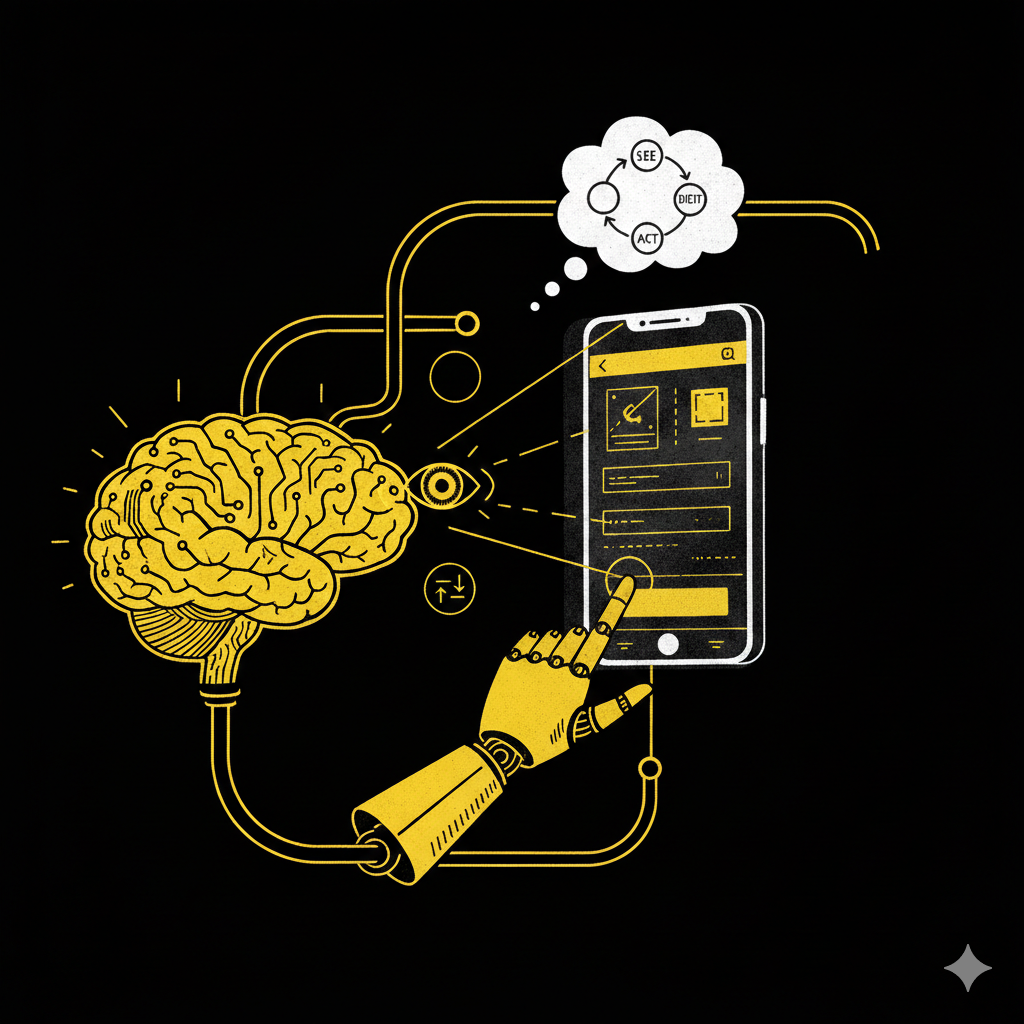
An agent is an LLM that can use tools on a loop. How can this fit our needs of interacting with a mobile app?
Using the way that a human interacts with an app as a reference, let’s break down what we need:
- The agent needs to see what’s on the screen
- Then it needs to decide what to do next
- Then it needs to act on that decision
That’s it, right? Now let’s repeat until the goal is reached or until it’s time to give up. The goal is very important here because it will drive the agent operation. Each time the agent observes the screen, it needs to decide (or assert) if the goal was achieved. Here’s a snippet of how this happens:
for step in range(max_steps):
# Get current state: screenshot + UI hierarchy
    	content = self.get_screenshot_and_ui_hierarchy()

    	messages.append({"role": "user", "content": content})

    	# Send to Claude with the task instructions
    	response = claude_client.messages.create(
       	model="claude-sonnet-4-5",
       	max_tokens=1024,
       	tools=tools,
       	system=system_prompt,
       	messages=messages
  	)

	# Process response
	assistant_text = ""
      	tool_calls = []

for content_item in response.content:
       	if hasattr(content_item, 'text'):
             		assistant_text += content_item.text
       	elif hasattr(content_item, 'type') and content_item.type == 'tool_use':
             		tool_calls.append({
                    	'name': content_item.name,
                    	'input': content_item.input
                    })

	# Add assistant response to conversation
      	messages.append({"role": "assistant", "content": assistant_text})

       # Check for completion
       if "TASK_COMPLETED" in assistant_text:
       	self.log("✅ Task completed successfully!")
            	return True
     	elif "TASK_FAILED" in assistant_text:
         	self.log("❌ Task failed")
           	return False

    	# Execute tool calls
     	if tool_calls:
       	for tool_call in tool_calls:
               	success = self.execute_tool(tool_call['name'], tool_call['input'])
                	if not success:
                    	messages.append({
                            	"role": "user",
                            	"content": "The last action failed. Please try a different approach."
                      	})

   	self.log("⚠️  Maximum steps reached")
    	return False
Here you can see that the model receives the current state of what is on the screen and then can decide what to do next.
Let’s look at how this first step works.
Eyes
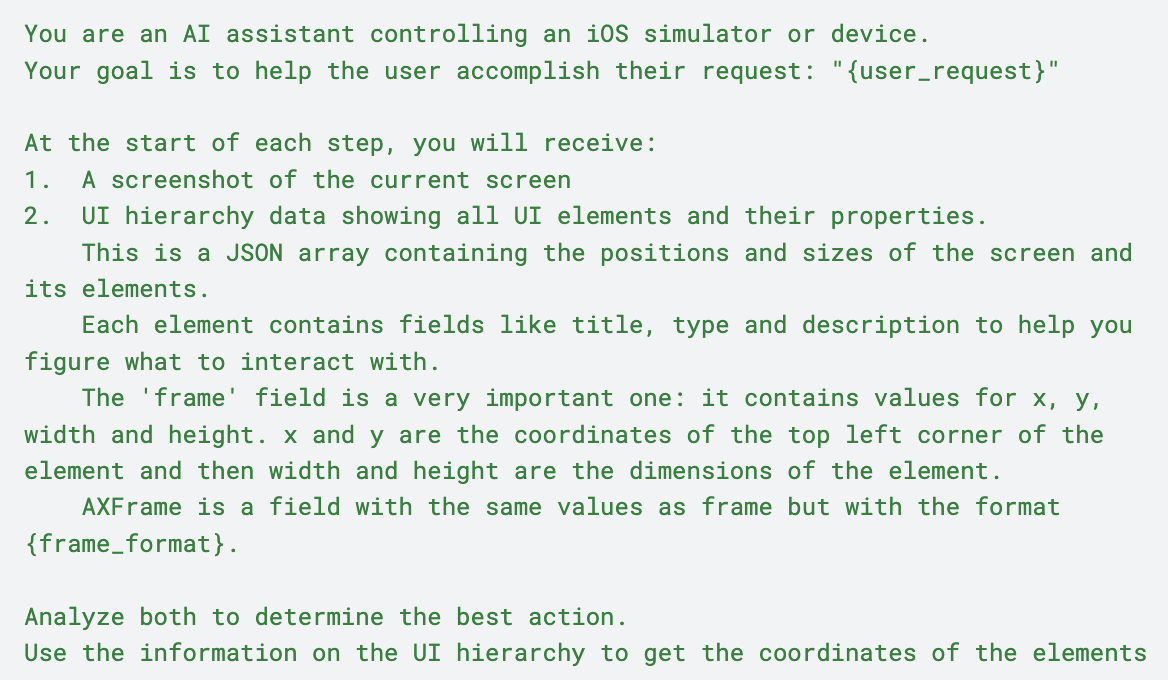
The richer the context of the app’s current state, the better the model can make a decision about what to do next. To do this, we send the model a screenshot and a description of the UI currently on the screen, including the elements and their coordinates.
To access this information, we rely on idb, a CLI created by Facebook to automate iOS devices but there are other options like AXe. This will also be useful when it’s time to interact with the screen, but for now, it gives our agent the eyes it needs.
We are using Claude for this, so we can rely on its vision capabilities to understand the screenshot as the main context of what is happening. The UI hierarchy serves as the map for all elements. On the system prompt we let the model know how this will work and what is expected.
Here’s a part of it:
Actions
Now that the agent knows what is on the screen and where those things are, it has enough information to decide what to do next. Those actions are exposed to the model as tools: tap on a coordinate, scroll from here to there, write text, etc.
The action itself happens locally, using idb and based on what the model wants to do next. When the action is complete, the agent needs to look at the screen again and decide whether the goal has been reached.
Here’s a snippet of the tool descriptions we send to the model:
{
"name": "tap",
       "description": "Tap at specific coordinates on the screen",
       "input_schema": {
       	"type": "object",
        	"properties": {
               	"x": {"type": "number", "description": "X coordinate to tap"},
                 	"y": {"type": "number", "description": "Y coordinate to tap"}
            	},
           	"required": ["x", "y"]
    	}
},
{
"name": "type_text",
   	"description": "Type text into the currently focused input field",
   	"input_schema": {
    		"type": "object",
        	"properties": {
          		"text": {"type": "string", "description": "Text to type"}
        	},
        	"required": ["text"]
  	}
 }
That’s it! From here, we can write YAML files containing the goal and the steps to achieve it, and the agent has everything it needs to start playing around in the app (tapping, swiping, and writing) to get there.
Challenges
This is a proof-of-concept that still needs work before it’s production-ready.
Cost: We are using Claude as the model that powers the agent, and this approach can become fairly expensive. We need to keep trying with different models and comparing the results to find a sweet spot.
Flakiness: Right now, we are relying on the agent to decide if a certain test was successful, and those assertions can be limited by multiple factors: poor prompting (unclear requirements or incomplete acceptance criteria), hallucinations (the model can’t find an element or comes up with elements that are not present), or insufficient tools. We think we can find ways to mitigate that. One approach we’ll likely try soon is to incorporate snapshot testing concepts to ensure we have a more reliable way to determine whether a test passed or failed.
Tool quality: idb provides a lot of functionality, but the agent must ensure it can perform the actions that the model requests. The quality of the tools directly affects what the agent can do.
What’s next
It is really interesting to see the agent trying to figure out what to do next while exploring the app, using the same principles a human would. Computer-using agents will be part of our future and how we interact with digital systems.
Apart from running tests, we believe there are other use cases for simulator-using agents like this. We can ask it to explore a system and report on usability issues, or to fully document the interactions between screens within an application.
We are continuing development to make the agent more robust, and the code is on GitHub if you want to dig in. If you’re thinking about where custom agents like this could fit into your workflow, get in touch!


Webinar: March 18
Claude for Leaders: turning AI into strategic advantage
Claude for Leaders: turning AI into strategic advantage
Free webinar - March 18
